Desktop App
The purpose of the Desktop app is to check the remote mining queue and add cards to your local Anki deck on the same machine. For more details, see How it Works.
Download
Section titled “Download”Prerequisites
Section titled “Prerequisites”1. Anki + AnkiConnect
Section titled “1. Anki + AnkiConnect”-
Install Anki if you haven’t already.
-
Open Anki and go to Tools → Add-ons → Get Add-ons.
-
Enter the code
2055492159and click OK to install AnkiConnect. -
Restart Anki.
Anki must be running whenever you use Remoki. The desktop app will show a red indicator if it can’t connect.
2. Yomitan
Section titled “2. Yomitan”- Ensure you have installed and configured Yomitan in your browser.
2.1 Enable Yomitan API
Section titled “2.1 Enable Yomitan API”-
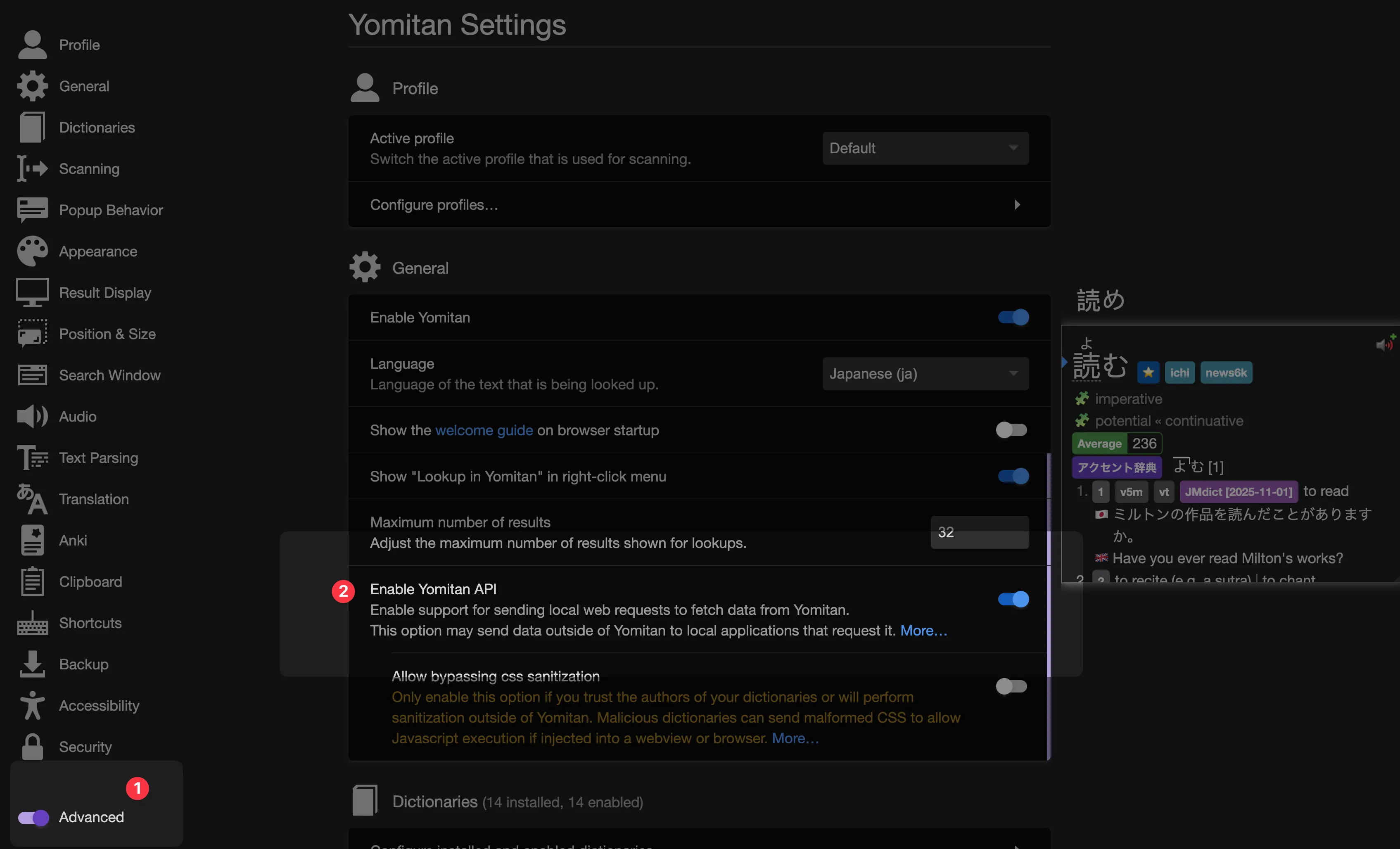
Open your browser’s Yomitan extension settings.
-
Enable the Advanced toggle in the bottom left corner.
-
Under the General section, enable Yomitan API.
2.2 Install the Native Messaging Host
Section titled “2.2 Install the Native Messaging Host”The native messaging host allows the Yomitan browser extension to communicate with Remoki on your computer.
The setup wizard in Remoki can install this automatically — click Install when prompted. If auto-install fails, you can install it manually from the yomitan-api repository.
Configure Mining
Section titled “Configure Mining”Go to Settings → Mining to set up how Remoki creates your Anki cards.
Import from Yomitan
Section titled “Import from Yomitan”If you’ve already configured Anki card creation in Yomitan, you can import those settings directly instead of setting everything up manually.
-
In Yomitan, go to Settings → Backup → Export and save the settings JSON file.
-
In Remoki, go to Settings → Mining and click Import from Yomitan… at the top.
-
Drop or select the exported JSON file. If you have multiple Yomitan profiles, choose the one you want to import.
-
Review the imported deck, note type, and field mappings, then click Import.
Deck and Note Type
Section titled “Deck and Note Type”Select your target Anki deck and note type from the dropdowns. These are fetched directly from your running Anki instance via AnkiConnect.
Field Mappings
Section titled “Field Mappings”Map each field in your Anki note type to a Yomitan data marker. This controls what data goes into each card field.
Configure tags that are automatically added to every mined card. By default, a remoki tag is included so you can easily find cards created via Remoki.
You can add, remove, or rename tags at any time — they apply to all cards mined going forward.
Tag with Device Name
Section titled “Tag with Device Name”Below the tag list is a “Tag with device name” checkbox (enabled by default). When enabled, each mined card is automatically tagged with the device name configured in the mobile app that sent it.
For example, if your phone’s device name is set to “My iPhone”, cards mined from that device will be tagged my_iphone (lowercased, spaces replaced with underscores). This is useful when you mine from multiple devices and want to filter or review cards by source.
The device name is configured in the mobile app’s settings — see Android App or iOS App for details.
Pairing with Mobile
Section titled “Pairing with Mobile”Go to Settings → Pairing to see your QR code. Open the Remoki mobile app and scan this code to pair your phone with your desktop. See Android App or iOS App for detailed instructions.
You can pair multiple phones to the same desktop account.